Salary Budget
1.2.0.1 ??? JWS
**WSS 2/13/23
The Salary Budget module handles all detailed compensation budgeting within the Budget Manager modules. Calculation results from the Salary Budget module are transferred over to the General Ledger tab for reporting and export purposes.
 continued

Header
|
Reload Data |
Refires the data pull |
|
Reset All |
Clears all selection dropdowns |
|
Cost Centre |
Provides a listing of cost centres available to load. |
|
Budget Version |
Provides a listing of salary budget versions available to load. |
Reload Data (Options)

Refresh Lookups – reloads all underlying data dictionary used by lookups in the module. It’s used when, for example, a new employee is added to the employee dictionary but the name cannot be found in any of the selection boxes.
Find and Load Cost Centre by Worksheet Id –

Worksheet ID – Enter Worksheet ID to go direct to Cost Centre with that worksheet.
OK – Select to proceed with Worksheet find.
Cancel – Select to Cancel
Tab – A: Worksheet
Employees in the salary budget module are divided up into worksheets, found on the A: Worksheet tab. Worksheets are divided up by Employee Class Group rather than Employee Class. New worksheets can be added at any time and worksheets can be deleted using the button in the upper right corner. It is important to remember that deleting a worksheet will delete all related records.

 Select to delete worksheet
Grid – A: Worksheet
|
Field |
Description |
|
ID |
System identifier number |
|
Cost Centre |
Cost Centre the record is attached to |
|
Employee Class Group |
Employee Class Group for the worksheet. Only employee class types belonging to the group can be assigned. |
|
Worksheet Profile |
Profile for default worksheet items to be populated in the B: Schedule Tab |
|
Adjustment Voucher |
Placeholder for Future Development |
|
Notes |
Double click to bring up note interface. |
|
Description |
Description of the worksheet. |
|
Fully Allocated |
Whether or not the system considers the B: Schedule tab to be complete. |
|
Calc FTEs |
Number of Calculated FTEs on the B: Schedule tab, shifts only. |
|
Alloc FTEs |
Number of Allocated FTEs on the B: Schedule tab, shifts only. |
|
Calc Hours |
Number of non-shift hours calculated on the B: Schedule tab. |
|
Alloc Hours |
Number of non-shift hours allocated on the B: Schedule tab. |
|
Calc Each |
Number of each units calculated on the B: Schedule tab. |
|
Alloc Each |
Number of each units allocated on the B: Schedule tab. |
|
Add User |
User that create the worksheet. |
|
Add Date |
Date and time the record was created. |
|
Change User |
Last user to alter the A: Worksheet record. |
|
Change Date |
Date and time the record was altered. |
A: Worksheet Options

|
Process Worksheet |
Calculate the currently selected worksheet. |
|
Process Worksheet – Selected Cost Centre |
Calculate all worksheets belonging to the current selected worksheet’s cost centre. |
|
Add Worksheet Items From Profile |
Typically only used when adding a new worksheet by hand. Populates the B: Schedule tab’s upper grid. |
|
Add Missing Default Staff To All Active Items |
Typically only used when adding a new worksheet by hand. Populated the B: Schedule tab’s lower grid where there are calculations filled in. |
|
Change Selected Staffing Worksheet’s Cost Centre |
Utility to aid in moving the worksheet and all associated records to a new cost centre. |
Change Selected Staffing Worksheet’s Cost Centre
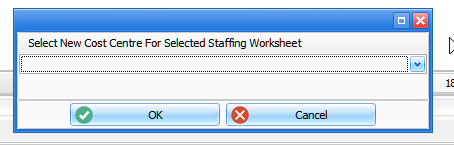
Select target cost centre from dropdown. Press OK to move the selected worksheet, or Cancel to back out of the process.
Bottom Grid – A: Worksheet
Tab – AA: Salary Records
This tab contains a listing of all employees currently assigned to the worksheet.

 Using the “Delete Salary Record” button will permanently delete the employee record for the system.
|
Field |
Description |
|
ID |
System identifier number |
|
Employees |
The employee number and name. Changing this value changes which employee the record is associated with. |
|
Profile |
Profile assigned to the employee, determines default earnings and offsets. |
|
Cost Centre |
Cost centre the employee is assigned to. This should always agree to the worksheet cost centre and, if it doesn’t, it should be fixed. |
|
Job Cost |
Job cost code assigned to the employee’s budget data. |
|
Allocation |
The allocation code assigned to the employee. |
|
Employee Org Types |
The organization/contract assigned to the employee. |
|
Employee Class |
The employee class assigned to the employee. |
|
Employee Type |
The employee type assigned to the employee. |
|
Vacation Plan Type |
The vacation plan assigned to the employee, determines vacation increases. |
|
Step Plan Type |
The step plan assigned to the employee, determines wage increases. |
|
Group Role Detail |
System generated, determines numerous calculation defaults for the employee including number of hours per year to be considered 1 FTE. |
|
Salary Pay Level |
Used to match the employee class with an alternate grid. Always blank unless classes can be paid multiple grid types. |
|
Marital Status |
Information column. |
|
Production Type |
Unit Producing, Management, Nurse Practitioner, or Medical. If blank, system will use the definition associated with the employee class from the dictionary. |
|
Position Title |
The employee’s position title. |
|
Position Number |
Position number from a position control system. |
|
Accumulated Hours |
Number of hours the employee has worked that count toward wage increases. |
|
Employee Annual Date |
Reference column, typically date of hire. Used for calculating accumulated hours if needed. |
|
Vacation Annual Date |
Reference column, typical date of hire. Used for calculating accumulated vacation hours if needed. |
|
No Grid Increase |
If checked, employee will have wages calculated with the prior year’s grid. |
|
No Step Increase |
If checked, employee will not be eligible for wage increases throughout the year. |
|
FTE Budget |
Reference FTE value, does not impact budgeting. |
|
Staff Budget |
Reference headcount value, does not impact budgeting unless earnings and benefits are configured to utilize it. |
|
Avg Vacation Hours |
Average vacation hours, occasionally used by calculation drivers. |
|
Avg Bank Hrs |
Reference. |
|
Calc Vacation Hrs |
The number of vacation hours the employee is eligible for, based on their accumulated vacation hours and vacation plan. |
|
Accum Vacation Hours |
Number of hours the employee has worked that count toward vacation increases. |
|
Avg Sick Hrs |
Number of eligible sick hours based on the employee’s group role. |
|
Avg Sick Hrs Override |
Manual override of sick hours. |
|
Avg Holiday Hrs |
Number of eligible stat holiday hours based on the employee’s group role. |
|
Avg Holiday Hrs Override |
Manual override of holiday hours. |
|
Avg Education Hrs |
Number of eligible education hours based on the employee’s group rol. |
|
Avg Education Hrs Override |
Manual override of education hours. |
|
Step |
What step of the grid the employee is at, at the beginning of the budget year. |
|
Step % |
Placeholder for Future Development |
|
Step Date |
Placeholder for Future Development |
|
Hours Rate |
Reference, the average hourly rate from the demographics download. This does not affect calculation. |
|
Next Step Date 1 |
The date of the next expected wage increase. |
|
Next Step Date 2 |
The date of the second next expected wage increase. |
|
Next Step Date 3 |
The date of the third next expected wage increase. |
|
Step Override |
Override of the current Step. |
|
Step % Override |
Placeholder for Future Development |
|
Hourly Rate Override |
Provides a fixed hourly rate for the calculation of all earnings. |
|
Profile Override |
If true, user can change the value in the ‘Profile’ column without it reverting. |
|
Step Plan Override |
If true, user can change the value in the ‘Step Plan’ column without it reverting. |
|
Vacation Plan Override |
If true, user can change the value in the ‘Vacation Plan’ column without it reverting. |
|
Salary Grid Override |
If true, user can change the value in the ‘Salary Grid’ column without it reverting. |
|
Total Profile FTEs |
Number of hours applied to profile values. |
|
Add User |
User that create the employee record. |
|
Add Date |
Date and time the record was created. |
|
Change User |
Last user to alter the employee record. |
|
Change Date |
Date and time the record was altered. |
Options

|
Create Vacant Employee/Salary Records For This Worksheet |
Allows for the creation of new vacant worksheets. Records created for this utility may not have benefits attached. |
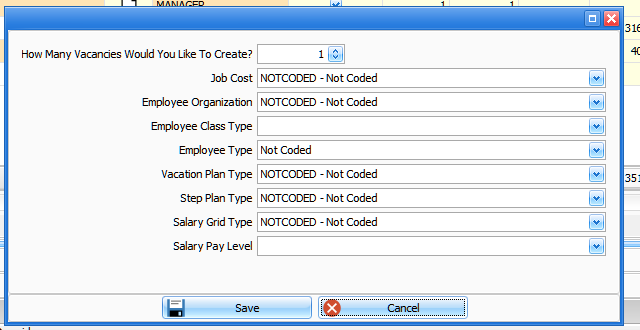
Populate values into the dropdowns and select ‘Save’ to proceed or ‘Cancel’ to back out.
|
How Many Vacancies |
Number of employee records to create |
|
Job Cost |
Job cost code to use |
|
Employee Organization |
Organization/contract to use |
|
Employee Class Type |
Employee class type to use, must be a valid selection for the worksheet’s employee class group |
|
Employee Type |
Employee type to use |
|
Vacation Plan Type |
Vacation plan to assign, will revert to dictionary assignment at next calculation if left as NOTCODED. |
|
Step Plan Type |
Step plan to assign, will revert to dictionary assignment at next calculation if left as NOTCODED. |
|
Salary Grid Type |
Salary grid to assign, will revert to dictionary assignment at next calculation if left as NOTCODED. |

Un-Link Selected Salary Records – select to un-link Salary Record selected in Bottom Tab.
 Use Tab C: Salary / Options – To Link Salary Records to this worksheet
Bottom Grid – A: Worksheet
Tab – AB: Worksheet Transfer Summary
This tab provides a listing of values transferred to the General Ledger module after calculation and provides prior year comparison information if configured. Values displayed are either for the selected worksheet (By Staffing Worksheet) or the loaded cost centre (By Cost Centre).

Top Tab – B: Schedule
The Schedule tab creates the earnings assumptions for the worksheet. This is the tab that users will interact with to create their budget. Column availability depends on what line is selected and what view is selected. Note, with Monday through Sunday shift lines, as of 1.1.9.3 only one line controls the allocation to employees on the BA: Worksheet Item Allocations tab.


Options and Dropdowns
 continued


|
Process Worksheet |
Calculates the current worksheet. |
|
Entity Type (Filter) |
Determines what set of worksheet items is display – Monday through Sunday, Annual, Replacement, or Calculated. |
|
(eraser) |
Clears the entity type filter and displays all item sets. |
|
Worksheet |
The currently selected worksheet. Selecting a different worksheet from the dropdown changes which worksheet is being edited. |
|
Views |
Shows the currently selected view. |
|
(pencil) |
Brings up the standardized view edit panel. |
Grid – B: Schedule
|
Field |
Description |
|
ID |
System identifier number |
|
Worksheet Item |
Worksheet item being worked on. |
|
Sequence Group |
Sequence group the item belongs to. |
|
Notes |
Memo field for quick notes. |
|
Reason |
Reason code associated with the line |
|
Day 1…Day 7 |
If using a one week schedule, represents shift requirements for the line for a single Monday through Sunday period. |
|
Day 8…Day 14 |
If using a two week schedule, represents shift requirements for the line for a single Monday through Sunday period. |
|
# Weeks |
Number of weeks in a year. Typically 52, 52.2 for leap years. Pulled from the worksheet item detail table. |
|
# Weeks Override |
Override for number of weeks. |
|
Begin Date |
If filled in, allows for a line to represent only a portion of the budget year. Filling this in will create a customized distribution for the entire worksheet that cannot be overridden. |
|
End Date |
If filled in, allows for a line to represent only a portion of the budget year. Filling this in will create a customized distribution for the entire worksheet that cannot be overridden. |
|
All Year |
Entry for the number of units the line represents. All Year represents whatever the line requires. If on a shift line, it represents FTEs. If on an annual line, it represents either hours or each units depending on what drives the calculation. |
|
% Replace |
On a calculated line, used to alter the final calculated value. Final calculated values are the Entitlement value times the % Replace. |
|
% Replace Override |
No longer used. |
|
Entitlement |
The calculation result of a worksheet item formula. |
|
Override Amount |
Allows for a direct override of the calculated amount. Should only be used on calculated worksheet items. |
|
Profile |
If checked, the line has been brought in to the schedule tab through the worksheet profile. |
|
Hours |
Calculated hours for the line. |
|
FTEs |
Calculated FTEs for the line. |
|
Each |
Calculated each units for the line. |
|
Include FTE Hours? |
Whether or not the system will transfer hours as FTE contributing hours. |
|
Is Valid |
A reference for whether or not the line has been properly allocated. |
|
Has Details |
Whether or not employee allocation records have been created for the line. |
|
Allocation Type |
The allocation type associated with the worksheet item in the Worksheet Item Detail dictionary. This should always be NOTCODED for Monday through Sunday values, and should never be NOTCODED for anything else. |
|
Transfer Value Type |
The value type transferred over to employees on the C: Salary tab. |
|
Group Role Details |
Which group role the item line is associated with. |
|
PY Hours |
Number of hours the item line had in the prior salary version. |
|
PY FTEs |
Number of FTEs the item line had in the prior salary version. |
|
PY Each |
Number of each units the item line had in the prior salary version. |
|
Add User |
User who created the item line. |
|
Add Date |
Date the record was added. |
|
Change User |
User who last changed the item line. |
|
Change Date |
Date the record was altered. |
Top Tab – B: Schedule
Bottom Tab – BA: Worksheet Item Allocations
This tab shows the allocation of values from the upper grid. This grid updates every Process Worksheet, not immediately after changes to the upper grid are saved. Typically, this tab only requires intervention for shift line allocation (FTEs) or for any upper grid item that has an allocation type of “Percent – Manual”.

Options
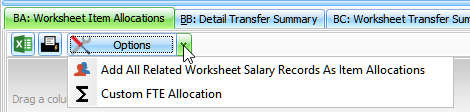
| Add All Related Worksheet Salary Records AS Item Allocations |
Only needs to be run if no allocation records are present and the user is intending to manually allocate the data. |
|
Custom FTE Allocation |
Only available for shift lines. Provides a utility to help with allocated FTE values to a large number of employees. |
Custom FTE Allocation
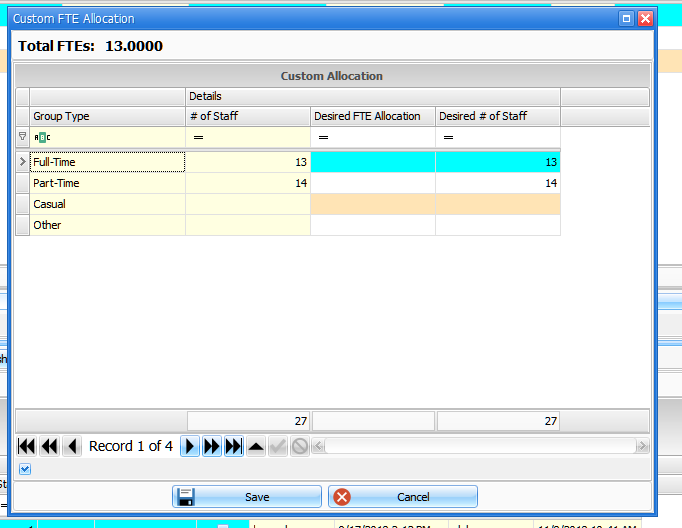
After filling in values, “Save” to proceed or “Cancel” to back out.
|
Total FTEs |
The total value of the shifts. |
|
Group Type |
The employee type group to output to. |
|
# of Staff |
Current headcount in the employee type group. |
|
Desired FTE Allocation |
The number of FTEs to be allocated to the employee type group. The total of this column must agree with the “Total FTEs” value. |
|
Desired # of Staff |
The desired headcount per employee type group. This can be increased, in which case the system will create a brand new vacant record with benefits modeled on existing employees.
Note, this increase option should not be used if there are no existing employees of that type group. |
Grid – BA: Worksheet Item Allocation
|
Field |
Description |
|
ID |
System identifier number |
|
Salary |
Employee name on the related salary record. |
|
Distribution |
Distribution code for the values on the record, system set if necessary. |
|
FTE Budget |
FTE Budget value from payroll reference field. |
|
FTEs |
Only applicable to shift lines, FTE value assigned to the record. |
|
Hours |
Total number of hours allocated, if applicable. |
|
Each |
Total number of each units allocated, if applicable. |
|
Staff |
Reference, headcount value. |
|
Percent |
Percentage allocated to the record. Can be manually adjusted if upper grid allocation type set to “Percent – Manual”. |
|
Override Amount |
Dollar value to assign to the hours/each when it transfers to the C: Salary tab. |
|
Frozen |
Whether or not to freeze the line’s values. |
|
Add User |
User that created the allocation record. |
|
Add Date |
Date/time of creation. |
|
Change User |
User that last changed the allocation. |
|
Change Date |
Date/time of change. |
Top Tab – B: Schedule
Bottom Tab – BB: Detail Transfer Summary
This tab is for reference only and is totaled by either Staffing Worksheet or Worksheet Cost Centre. Contains amount, hours, and FTE values that are being transferred by employee.

Top Tab – B: Schedule
Bottom Tab – BC: Worksheet Transfer Summary
This tab is for reference only and is totaled by either Staffing Worksheet or Worksheet Cost Centre. Contains amount, hours, and FTE values that are being transferred by employee class.

Top Tab – B: Schedule
Bottom Tab – BD: Multi-Version Worksheet Items
This tab provides a reference to other worksheets when running a multi scenario or multi year budget. Documentation is not yet available on this tab.

Top Tab – B: Schedule
Bottom Tab – BE: Employee Info
Top Tab – C: Salary
This tab contains the salary records for all employees in the database and defaults to showing only those employees linked to the currently selected worksheet. Employee records on this tab contain the results of the earning and benefit calculations.


Options and Dropdown

Calculate Salary

Delete Selected Salary Record

Synchronize Benefits From Staging

Synchronize Salary From Staging

Clone Selected Salary Records

Smart Clone and Link Selected Salary Records

Smart Clone and Link Selected Salary Records (Retain Employee ID)

Link to Selected Worksheet

Un-Link Selected Salary Records

Move Selected Salary Record to New Worksheet

Delete Selected Un-linked Salary Records

Convert Selected Records to Vacant – Simple

Convert Selected Records to Vacant – With Reset

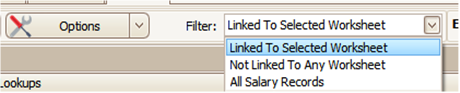
Use Filter to make record selection to display on Grid.
|
Linked to Selected Worksheet |
Displays only those salary records linked to the currently selected worksheet. |
|
Not Linked To Any Worksheet |
Displays only those salary records that have no worksheet assignment. |
|
All Salary Records |
Displays every salary record in the current salary budget version. |
Grid – C: Salary
|
Field |
Description |
|
ID |
System identifier number |
|
Production Type |
Unit Producing, Management, Nurse Practitioner, or Medical. If blank, system will use the definition associated with the employee class from the dictionary. |
|
Staffing Worksheet |
Worksheet the employee record is linked to. |
|
Employees |
The employee number and name. Changing this value changes which employee the record is associated with. |
|
Cost Centre |
Cost centre the employee is assigned to. This should always agree to the worksheet cost centre and, if it doesn’t, it should be fixed. |
|
Allocation |
The allocation code assigned to the employee. |
|
Employee Org Types |
The organization/contract assigned to the employee. |
|
Employee Class |
The employee class assigned to the employee. |
|
Employee Type |
The employee type assigned to the employee. |
|
Vacation Plan Type |
The vacation plan assigned to the employee, determines vacation increases. |
|
Step Plan Type |
The step plan assigned to the employee, determines wage increases. |
|
Group Role Detail |
System generated, determines numerous calculation defaults for the employee including number of hours per year to be considered 1 FTE. |
|
Salary Pay Level |
Used to match the employee class with an alternate grid. Always blank unless classes can be paid multiple grid types. |
|
Marital Status |
Information column. |
|
Profile |
Profile assigned to the employee, determines default earnings and offsets. |
|
Position Title |
The employee’s position title. |
|
Position Number |
Position number from a position control system. |
|
Accumulated Hours |
Number of hours the employee has worked that count toward wage increases. |
|
Employee Annual Date |
Reference column, typically date of hire. Used for calculating accumulated hours if needed. |
|
Vacation Annual Date |
Reference column, typical date of hire. Used for calculating accumulated vacation hours if needed. |
|
No Grid Increase |
If checked, employee will have wages calculated with the prior year’s grid. |
|
No Step Increase |
If checked, employee will not be eligible for wage increases throughout the year. |
|
FTE Budget |
Reference FTE value, does not impact budgeting. |
|
Staff Budget |
Reference headcount value, does not impact budgeting unless earnings and benefits are configured to utilize it. |
|
Avg Vacation Hours |
Average vacation hours, occasionally used by calculation drivers. |
|
Avg Bank Hrs |
Reference. |
|
Job Cost |
Job cost code assigned to the employee’s budget data. |
|
Calc Vacation Hrs |
The number of vacation hours the employee is eligible for, based on their accumulated vacation hours and vacation plan. |
|
Accum Vacation Hours |
Number of hours the employee has worked that count toward vacation increases. |
|
Avg Sick Hrs |
Number of eligible sick hours based on the employee’s group role. |
|
Avg Sick Hrs Override |
Manual override of sick hours. |
|
Avg Holiday Hrs |
Number of eligible stat holiday hours based on the employee’s group role. |
|
Avg Holiday Hrs Override |
Manual override of holiday hours. |
|
Avg Education Hrs |
Number of eligible education hours based on the employee’s group rol. |
|
Avg Education Hrs Override |
Manual override of education hours. |
|
Step |
What step of the grid the employee is at, at the beginning of the budget year. |
|
Step % |
Placeholder for Future Development |
|
Step Date |
Placeholder for Future Development |
|
Hours Rate |
Reference, the average hourly rate from the demographics download. This does not affect calculation. |
|
Next Step Date 1 |
The date of the next expected wage increase. |
|
Next Step Date 2 |
The date of the second next expected wage increase. |
|
Next Step Date 3 |
The date of the third next expected wage increase. |
|
Step Override |
Override of the current Step. |
|
Step % Override |
Placeholder for Future Development |
|
Hourly Rate Override |
Provides a fixed hourly rate for the calculation of all earnings. |
|
Profile Override |
If true, user can change the value in the ‘Profile’ column without it reverting. |
|
Step Plan Override |
If true, user can change the value in the ‘Step Plan’ column without it reverting. |
|
Vacation Plan Override |
If true, user can change the value in the ‘Vacation Plan’ column without it reverting. |
|
Salary Grid Override |
If true, user can change the value in the ‘Salary Grid’ column without it reverting. |
|
Total Profile FTEs |
Number of hours applied to profile values. |
|
Add User |
User that create the employee record. |
|
Add Date |
Date and time the record was created. |
|
Change User |
Last user to alter the employee record. |
|
Change Date |
Date and time the record was altered. |
Top Tab – C: Salary
Bottom Tab – CA: Earnings
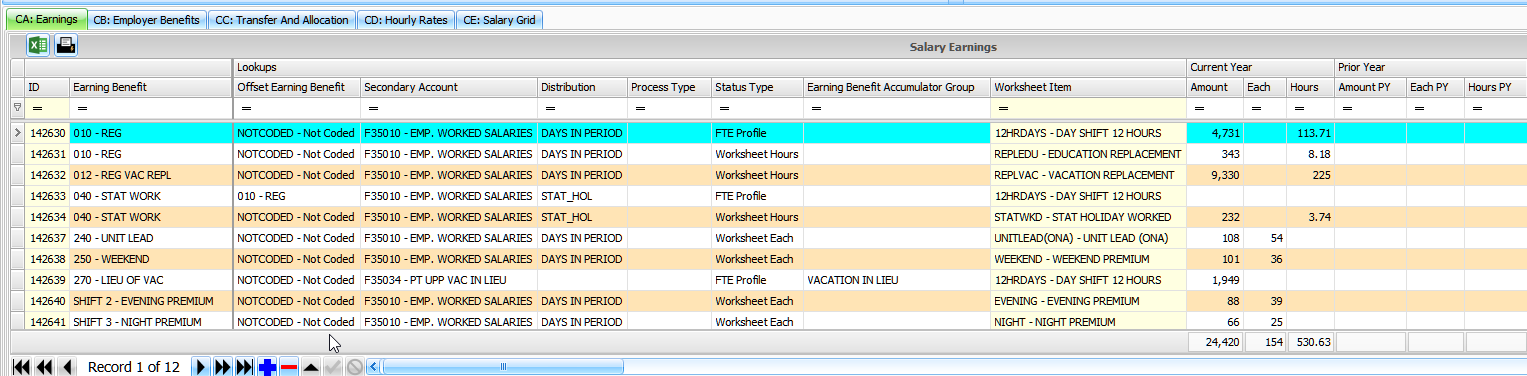
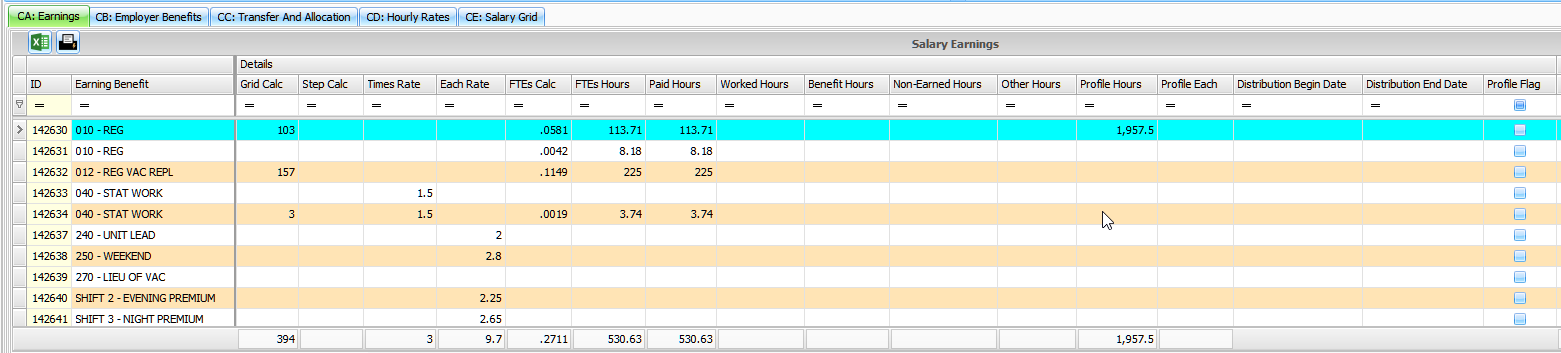
This tab contains all earning/benefit codes tagged as ‘Earning’ and is driven by the values entered into the B: Schedule tab. Values are typically not directly edited.
Grid – CA: Earnings
|
Field |
Description |
|
ID |
System identifier number |
|
Earning Benefit |
Earning benefit code. |
|
Offset Earning Benefit |
Which other earning code the current earning offsets. |
|
Secondary Account |
The financial secondary account the earning is linked to. |
|
Distribution |
Distribution code assigned to the earning. |
|
Process Type |
Reference, calculation process type. |
|
Status Type |
Where the earning was defined. |
|
Earning Benefit Accumulator Group |
Which accumulator group the earning pulls data from, if a percentage calculation. |
|
Worksheet Item |
Which worksheet item the record was created from, if applicable. |
|
Amount |
Calculated dollar amount. |
|
Each |
Input each units. |
|
Hours |
Input hours value. |
|
Amount PY |
Prior year amount. |
|
Each PY |
Prior year each. |
|
Hours PY |
Prior year hours. |
|
Grid Calc |
The dollar value related to the difference in salary grid rates (eg: Cost of Living Adjustment) |
|
Step Calc |
The dollar value related to the difference in employee hourly rate (eg: employee raise) |
|
Time Rate |
Reference, the hourly rate multiplier used in calculating dollars from hours. |
|
Each Rate |
Reference, the each rate used in calculate dollars from each. |
|
FTEs Calc |
Calculated FTE values |
|
FTEs Hour |
Calculated FTE-contributing hours. |
|
Paid Hours |
Hours flagged as paid work. |
|
Worked Hours |
Hours flagged as worked. |
|
Benefit Hours |
Hours flagged as benefit. |
|
Non-Earned Hours |
Hours flagged as non-earned. |
|
Other Hours |
Hours flagged as hours. |
|
Profile Hours |
Hours from profile (estimates) |
|
Profile Each |
Each from profile (estimates) |
|
Distribution Begin Date |
Beginning date of the earning, if budgeted over a limited time horizon. |
|
Distribution End Date |
Ending date of the earning, if budgeted over a limited time horizon. |
|
Profile Flag |
Whether or not the value has come from the profile. |
|
GL Period 1…13 |
Dollars distribution among the GL periods. |
|
GL Period Hours 1….13 |
Hours distribution among the GL periods. |
|
PP Amount 1…27 |
Dollars distribution among the pay periods. |
|
PP Hours 1…27 |
Hours distribution among the pay periods. |
|
Amount Override |
If checked, allows for direct alteration of the amount column. |
|
Hourly Rate Override |
Overrides the hourly rate for the specific line. |
|
Each Rate Override |
Overrides the each unit rate for the specific line. |
|
Distribution Override |
If checked, allows for direct alteration of the assigned distribution code. |
|
Add User |
User that created the line. |
|
Add Date |
Date/Time the line was created. |
|
Change User |
User that last changed the line. |
|
Change Date |
Date/Time the line was changed. |
Top Tab – C: Salary
Bottom Tab – CB: Employer Benefits
This tab contains all earning/benefit codes tagged as ‘Benefit’ and is driven either by fixed value benefits or by accumulated earnings. Values are typically not directly edited.
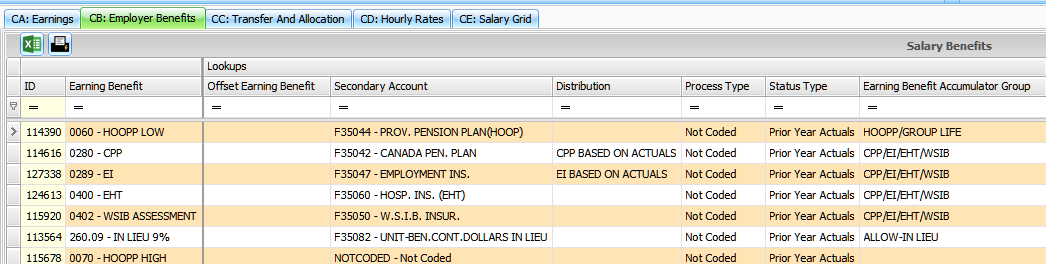
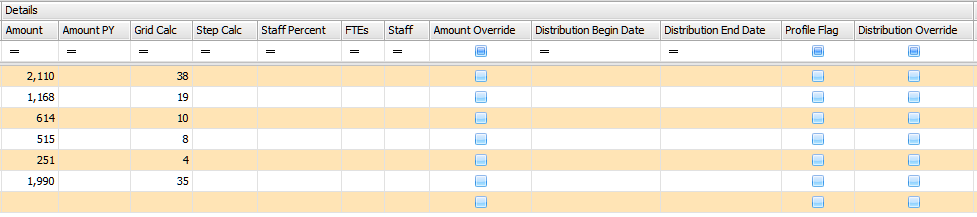
Grid – CB: Employer Benefits
|
Field |
Description |
|
ID |
System identifier number |
|
Earning Benefit |
Earning benefit code. |
|
Offset Earning Benefit |
If applicable, earning/benefit that is offset by the end value. |
|
Secondary Account |
The financial secondary account the benefit is linked to. |
|
Distribution |
The distribution code used for the benefit. |
|
Process Type |
Reference. |
|
Status Type |
Reference. |
|
Earning Benefit Accumulator Group |
Accumulator that the benefit uses for calculation. |
|
Amount |
Dollar amount. |
|
Amount PY |
Prior year dollar amount. |
|
Grid Calc |
The amount budgeted due to a change in salary grid. |
|
Step Calc |
The amount budgeted due to a change in salary’s hourly rate. |
|
Staff Percent |
If using the multiple deployment system, displays the percentage of employment the salary record represents for the employee. |
|
FTEs |
If applicable, FTE value in calculation. |
|
Staff |
If applicable, headcount value in calculation. |
|
Amount Override |
If checked, allows for direct editing of the amount column. |
|
Distribution Begin Date |
Beginning date of the benefit, if budgeted over a limited time horizon. |
|
Distribution End Date |
Ending date of the benefit, if budgeted over a limited time horizon. |
|
Profile Flag |
If checked, line comes from a profile. |
|
Distribution Override |
If checked, allows for direct override of the assigned distribution code. |
|
GL Period Amount 1…13 |
Value allocated to each general ledger period. |
|
PP Amount 1…27 |
Value allocated to each pay period. |
|
Add User |
User that created the line. |
|
Add Date |
Date/Time the line was created. |
|
Change User |
User that last changed the line. |
|
Change Date |
Date/Time the line was changed. |
Top Tab – C: Salary
Bottom Tab – CC: Transfer and Allocation
This tab displays a summary of what calculation results have been transferred to the general ledger prepare module.
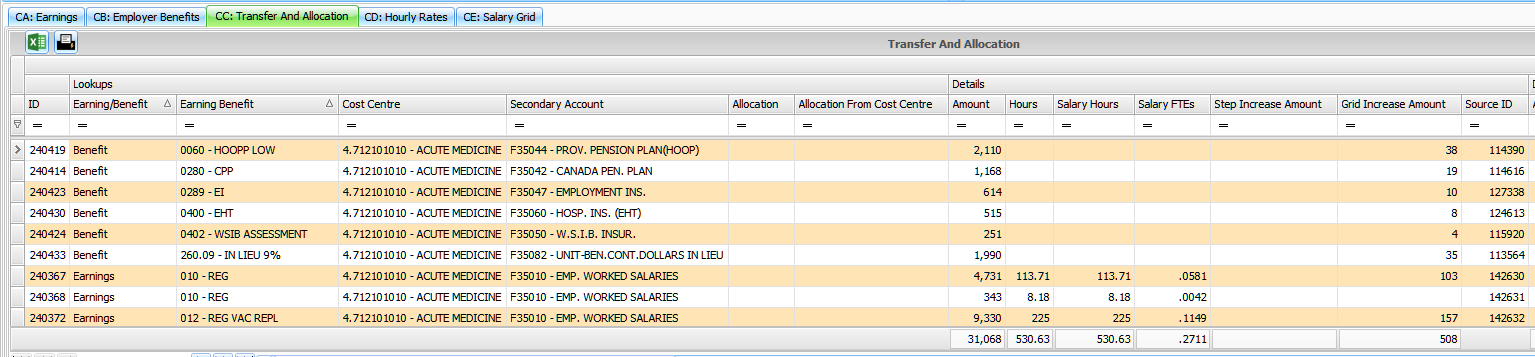
Top Tab – C: Salary
Bottom Tab – CD: Hourly Rates
Shows the hourly rate being used for the employee each pay period. It’s calculated for each potential scenario for grid and step increase permissions.
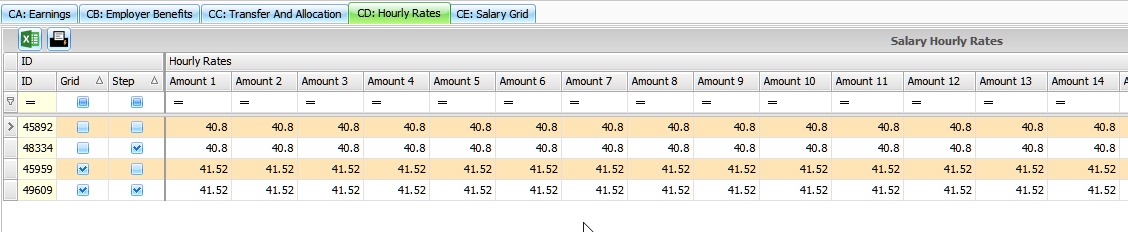
Top Tab – C: Salary
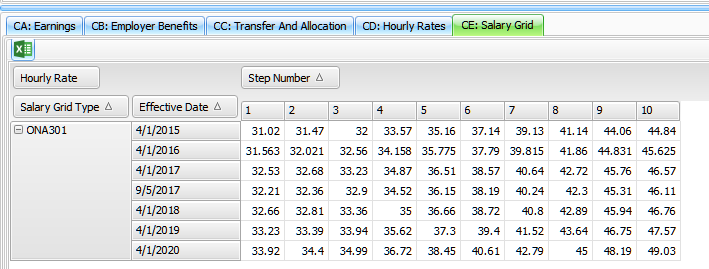
Tab – CE: Salary Grid
Displays the grid history for the salary grid assigned to the employee. Note, grid must be balanced historically (contain an equal number of steps each year) and should never have blank rates.