
Run Report
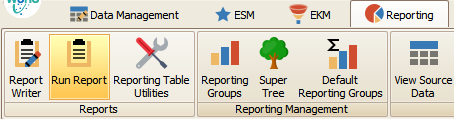
Run Report is used to display presentation reports.
Header


|
Run Report |
Once a report has been selected this button will launch the report. There are two sub-items: Refresh Data – Reloads the module Refresh Lookups – Reloads lookup data |
|
Max Records |
The maximum number of records the report will load. This is used so that a report is not accidentally run on a large number of records. |
|
Update Stats |
When clicked, updates ‘Possible # of Records’ with the number of records that the current data ranges will result in. If this number exceeds ‘Max Records’ you will either want to run on a smaller subset of data or increased the value in Max Records. |
Reports
The main data grid lists all reports configured in the system. Nothing in this grid is editable.

For the definition of these columns, please see the ‘Report Writer’ documentation.
Report Options
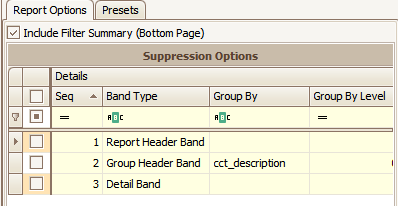
This child grid provides a way to turn bands off at report run time. Checking the left hand column will suppress the band. In course of normal operation this tab will not need to be edited.
‘Include Filter Summary (Bottom Page)’ will eliminate the range display page at the end of a report if unchecked.
Presets
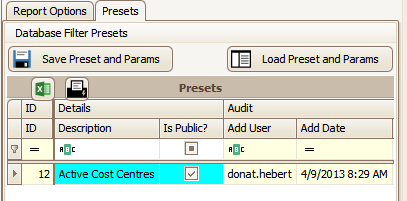
Presets are a way of storing data ranges and default range selections for easier access by users. Typically, a preset will be set up for end users by power users to make reporting easier. New presets can be created by using the blue ‘plus’ sign in the navigation bar.
|
Save Preset and Params |
This will overwrite the currently selected preset. |
|
Load Preset and Params |
This will load the currently selected preset. |
|
Description |
Description provided for the preset. |
|
Is Public |
If checked, all users will see the preset. If unchecked, the creating user will be the only one that can access the preset. |
User Preset Parameters
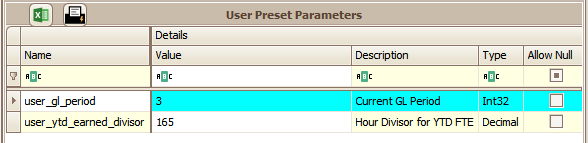
When a report has user parameters configured the ‘User Preset Parameters’ panel will appear at the bottom of the Preset window. These parameters are used to provide a greater degree of control over various aspects of the report display and calculations. Only the ‘Value’ column can be edited as part of the preset. Any report using these User Preset Parameters should have a preset created by power users for end users to use.
Report Filter
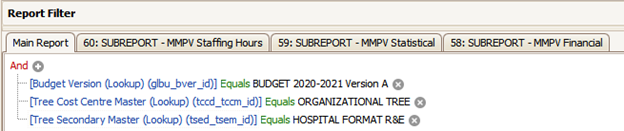
The Report Filter section handles ranges for the report. Ranges are ‘AND’ based, so ranges cannot be specified that are mutually exclusive; one cannot have two lines defined for a cost centre:

In this case, you will end up with no records as no data line will be equal to both cost centres. On the other hand, a range selection set up like this:

This is fine as all cost centres wanted for the report are in a single Equals list.
Note that multiple lines excluding data (Cost Centre Not Equals) are acceptable.
Most reports will only list a ‘Main Report’ panel. When a report calls one or more sub-reports there will be additional range panels, each with their own set of criteria. A sub-report filter panel looks as follows:

It is similar to the main report but includes additional help sections.
|
Add Required Filters |
This will add all required filters to the selection panel. Note, a preset may be legitimate and still be missing required filters if it is used for web report calls. |
|
Update Stats |
Updates the stats for the sub-report based on the sub-report filter. |
|
Copy Main Common Filters |
Copies all common filters from ‘Main Report’ into the sub-report. |